Shooting the moon with a Canon EOS R5 Mark II
• 10 min read
I sometimes like to take photos of the moon.
Here’s a recent effort:
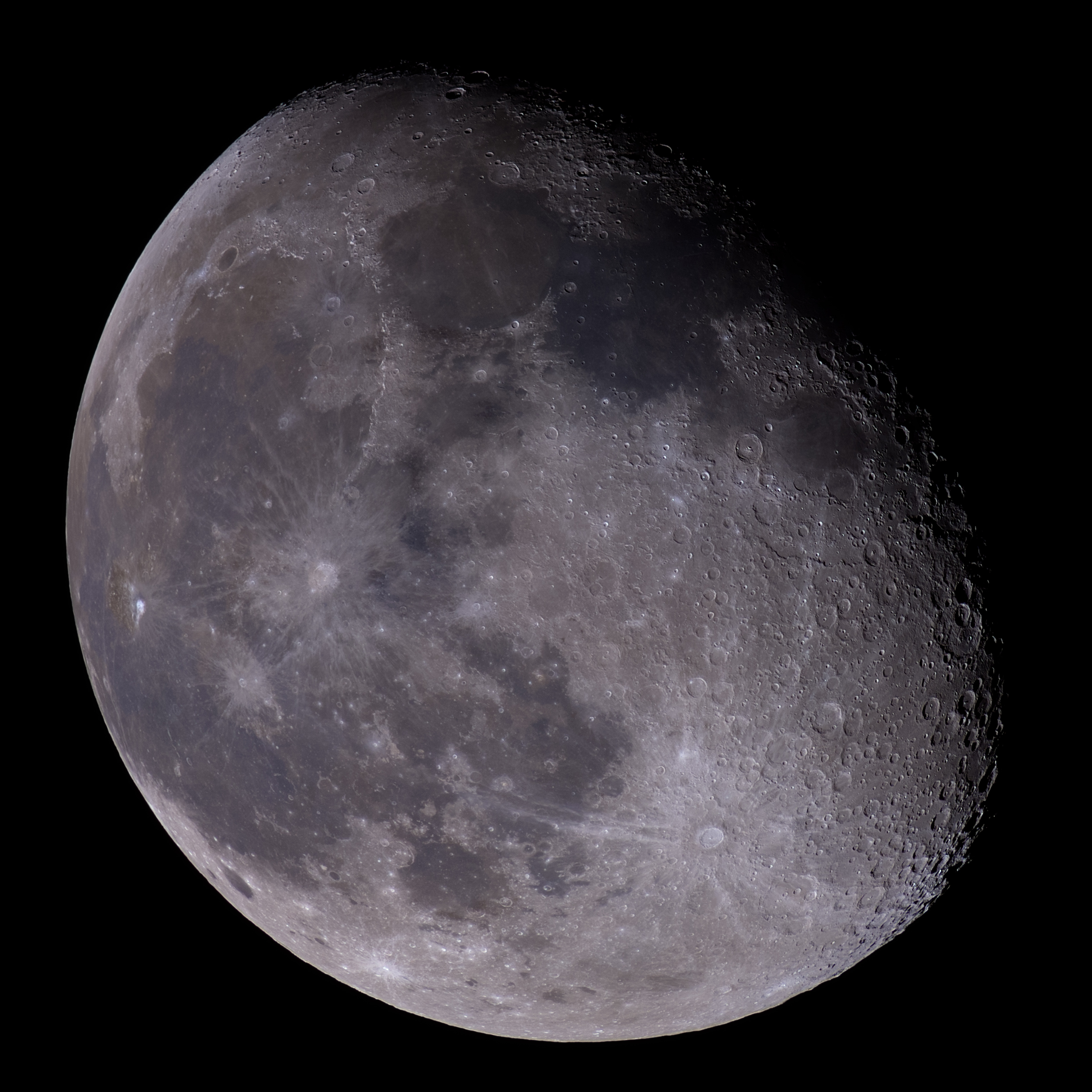
That photo of a waning gibbous moon was taken on 8 November 2025, with the moon 83% illuminated.
The photo is a stack produced from multiple individual shots taken over a few seconds. Inspired by some other photos online, I tried to draw out a bit of colour. The colour’s still relatively subtle here (and best viewed with night light off on your device). You can see reddish-brown areas, such as the Mare Serenitatis (Sea of Serenity). The nearby Mare Tranquillitatis (Sea of Tranquillity) is darker, with a slight blue tinge, caused by it being rich in ilmenite (as I understand, anyway).
Taking the photo
Equipment
I used the equipment that I had – a Canon EOS R5 Mark II mirrorless camera, an RF 800mm F11 IS STM lens and an RF 1.4x extender, plus a half-decent tripod.
I took 130 continuous shots in RAW format over 4.3 seconds, at ISO 200 and a shutter speed of 1/320s. The extender reduces the aperture to ƒ/16. I stopped at 130 shots because that’s when my camera pauses to take a breather1, and continuous shooting slows down.
I used the electronic shutter to avoid shutter shock and maximise the shooting speed. I took the shots using the Canon Camera Connect mobile app to avoid disturbing the camera (and introducing movement into the photo).
I tried to keep the moon near the centre of the frame where the optical quality of camera lenses is typically at a maximum. Positioning the moon there by adjusting the tripod head is quite difficult (at least with my tripod) as the camera tends to move slightly when locking it into place. (The 1120mm focal length, heavy kit and angle the lens is pointing at are not helping here.) A trick I use is to move the rear tripod leg to make small adjustments to framing – this ends up being far easier and accurate.
I repeated the process a few times so that I have a few different sets of shots to choose from.
At 1120mm, every tiny vibration is magnified. Hence, keeping the camera stable is important. That includes placing the tripod on a stable, solid surface – you don’t want footsteps to introduce vibrations, for example.
I used to make micro-adjustments to the camera focus using the Canon Camera Connect mobile app and the 15x live view zoom. Something must’ve been different when I last successfully did that, though, as the lag when making the adjustments combined with how quickly the moon was moving on screen simply made it impractical.
Timing
I kept an eye on the weather forecast to see when the night sky would be free of clouds, while also keeping tabs on the moon phase, distance from the Earth and position in the sky.
The distance of the moon from the Earth can vary from roughly 357,000 km to 406,000 km. It might be wishful thinking, but I like to wait until the moon is close-ish in the hope that I’ll get a better shot. (At the very least, it’ll fill more of my camera’s sensor.) For this shot, the moon was approximately 365,239 km away.
I wait until the moon is relatively high in the sky before taking my photos. When it’s low in the sky, you’re viewing it through much more atmosphere and so there will be more atmospheric turbulence, distorting details.
I usually don’t bother taking photos of a full moon. Photos when less of the moon is illuminated will reveal much more detail and so tend to be much more interesting.
Processing the photos
Once I got my shots, I headed back inside and loaded them into Adobe Lightroom. I had a quick look at the different sets of shots and picked out the sets that don’t have any obvious problems (like being out of focus or too off-centre).
For my first few attempts at stacking the photos, I exported the good sets of photos using Lightroom. Before exporting, I adjusted the exposure slider to +1.35 as my shots were a bit underexposed. I disabled sharpening, chromatic aberration correction and noise reduction to avoid interfering with the stacking process. With those develop setting tweaks in place, I exported the photos to 16-bit-per-channel TIFFs. (TIFFs are much much faster to export than PNGs in Lightroom.)
After I first published this post, I ditched Lightroom and switched to using LibRaw and Python library rawpy to process the RAW files. This allowed me to get purer data out of the RAW files and to easily automate the process. The current version of rawpy (0.25.1 at time of writing) uses a version of LibRaw that doesn’t support the Canon EOS R5 Mark II, so I had to build the rawpy myself with the Git version of LibRaw (which does support the R5 Mark II)2.
Stacking
Here is a video made up of 200×200px crops of one of the set of photos taken, scaled to 400×400px in-browser:
The craters wobble and change shape slightly between shots. Stacking the photos evens out those differences and reduces noise considerably.
(The main crater in that video is Theophilus. Incidentally, I came across a great shot of it on Wikipedia. There are many other great images from the same uploader on the Gruppo Astrofili William Herschel website.)
#/media/File:Theophilus_Si_Barbero_Zetta_Ferruggia.jpg)
Initially, I used AutoStakkert! to do the stacking. It’s fairly straightforward to use. After loading in my photos (which can be easily done by dragging and dropping them on to the app), I checked the settings and clicked the Analyse button. Once the analysis is finished, it shows a quality graph, from which you can read what percentage of photos are above different estimated quality levels.
Ctrl-clicking on the graph will set the percentage of images to stack at the corresponding point on the x-axis. I got results I was happy with when including 41% of the images. Including too many may result in a stacked image that is too soft. (In this case, I also wanted to minimise chroma noise so that I could later increase the saturation of the stacked image.)
I then selected the command to make AutoStakkert! automatically place alignment points, and finally I started the stacking step. A little while later, I have a new, stacked PNG.
Since first publishing this post, I switched to using a custom Python script (instead of AutoStakkert!) to stack the images. The script makes use of OpenCV (via the Python bindings) to score and align the images. It then applies some maths to combine the aligned images into one. The results aren’t much different from what I got using AutoStakkert! – the main advantage for me is that the script is easier to automate and it behaves more consistently. (Plus, I like having full control over everything.)
A problem of RGB alignment
Going back a step, I noticed that, when disabling colour noise reduction in Lightroom, the red, green and blue channels of the photos became misaligned. The same was true when using LibRaw to process the RAW image.
I processed one of the photos using LibRaw and DHT demosaicing and took a
200×200px crop. Here’s that crop enlarged in-browser with the
pixelated algorithm,
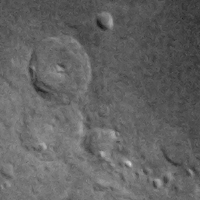
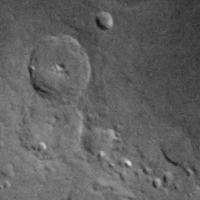
along with greyscale versions of the red, green and blue channels from the crop:
All channels

Red
Green
Blue
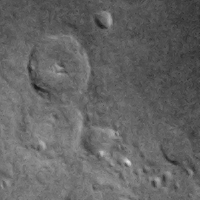
The green channel is shifted very slightly left and up from the red channel, and the blue channel is shifted more noticeably in the same direction. (Perhaps this is due to atmospheric dispersion.)
I’d never have guessed that colour noise reduction in Adobe Lightroom and Adobe Camera Raw would correct this. (And, of course, I don’t want to apply noise reduction to the RAW images as that will interfere with the stacking process.)
(Also of note is that the green channel is slightly clearer – probably because my camera uses a Bayer filter, which has a filter pattern with twice as many green filters as red or blue ones.)
If using AutoStakkert!, it has an RGB alignment option that operates on the stacked image. However, I got better results using OpenCV via a Python script. That script calculates and applies an affine transformation to the red and blue channels to get them to better fit the green channel. It did a good job of sorting things out and got rid of almost all colour fringing that the misalignment was causing.
(I also did a whole-pixel shift RGB alignment of the input images, for completeness’ sake.)
Sharpening
The stacked image is a little bit soft. It’s not greatly noticeable in this case when zoomed out. Still, getting the image sharper is well worthwhile.
To sharpen planetary images while minimising artefacts, wavelet decomposition is typically used to selectively enhance finer details like craters.
I used waveSharp for this photo. It does a good job, but is also very slow for high-resolution images. Another option is the À trous wavelets transform tool in Siril, which is much faster if you can’t get on with waveSharp.
It’s easy to go too far when sharpening the image. I tried to strike a balance and avoid that here.
Visualising the steps so far
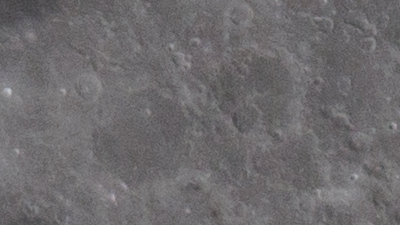
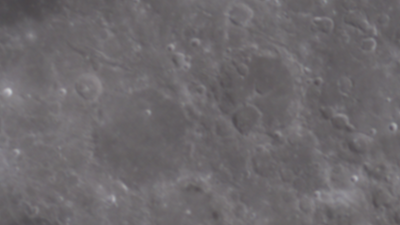
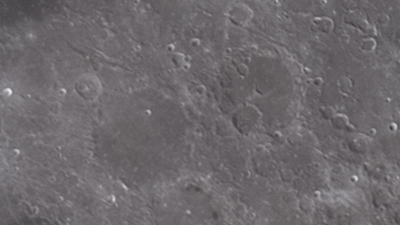
Here are some 400px by 225px crops, scaled in-browser, to visualise the main steps so far.
The crops show:
- A single frame exported from Lightroom, with the default sharpening and noise reduction enabled. (This is to get an idea of what you would have without stacking.)
- A single frame processed by LibRaw using DHT demosaicing (with no sharpening or noise reduction applied).
- The stacked image.
- The sharpened version of the stacked image.
Single frame (processed)
Single frame (unprocessed)

Stacked
Sharpened
Finishing touches
The minimal processing done to the RAW files initially means the image is very neutral as it is – particularly compared with some of the moon photos from NASA. And, of course, I wanted to bring out some colour in the photo.
Hence, as a final step, I loaded the sharpened photo into Photoshop and used the Camera Raw filter to make a few finishing adjustments. This included increasing saturation to bring out that colour and applying a custom tone curve.
Revisiting another photo
I also revisited a similarly stacked photo of a waxing gibbous moon I took on 8 April 2025, and brought out a touch of colour in that one too:

What about the full moon?
Okay, I did take photos of the supermoon on 4 December 2025. Here’s the stacked version:
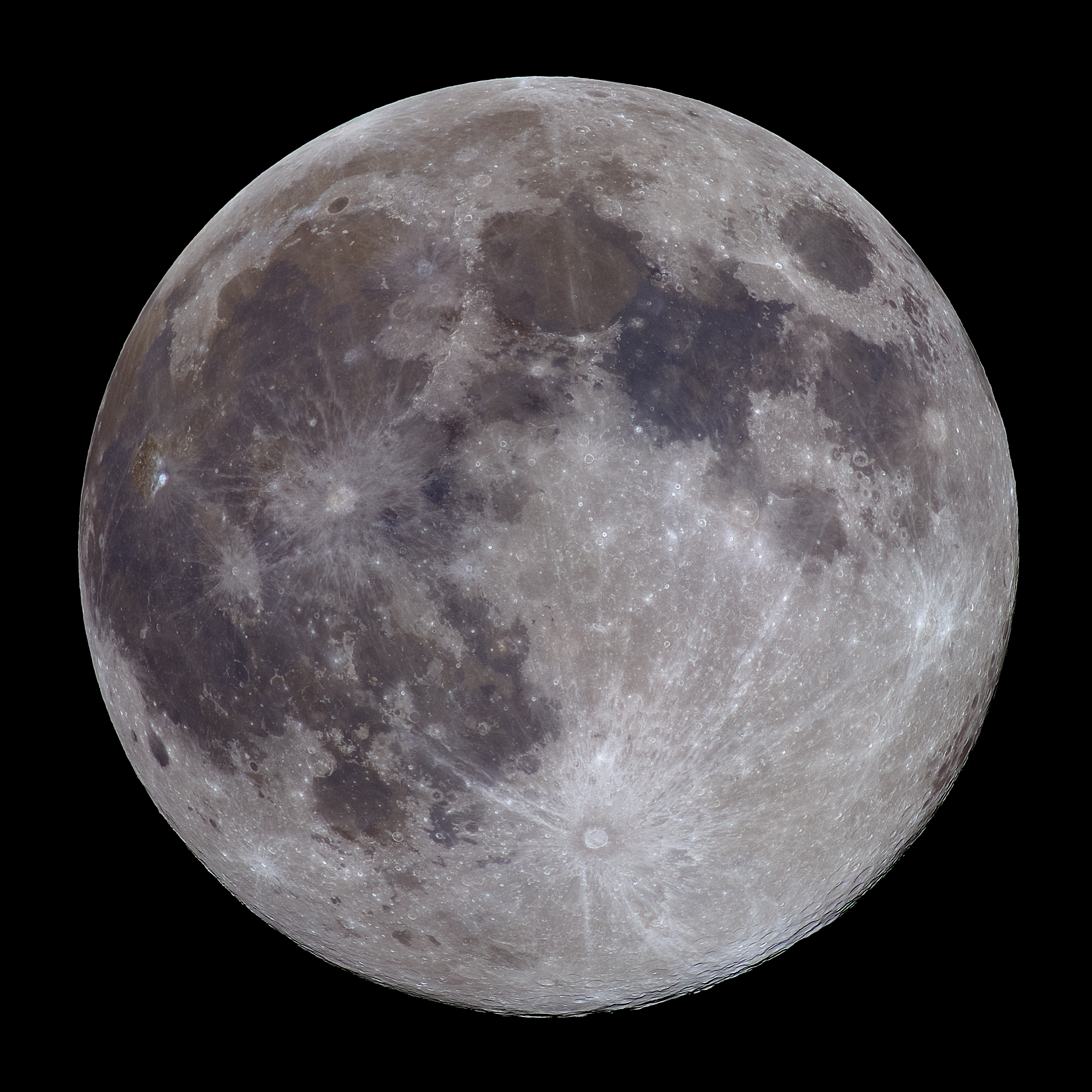
As I hinted at earlier, the even lighting during a full moon makes craters and other surface details look flat. It does mean that the colours come out more consistently, though.
Wrapping up
I quite like drawing out a touch of colour in my moon photos. It adds another dimension of detail, which is especially nice in parts of the photo that are otherwise undefined.
I don’t claim to have a clue what I’m doing, and I always wonder if I can get better shots with the same kit. Perhaps a slightly faster shutter speed will do a better job at freezing atmospheric turbulence. And I wonder if I would be better off ditching the extender, as that will allow me to shoot at an aperture of ƒ/11 and get more light in, potentially allowing me to shoot at a lower ISO and reduce noise.
Mind you, Jupiter’s getting close – it may well be time to retry taking a photo of it.
Post history
2 January 2026
The final processed photos in this post have been updated with new versions produced using a new workflow. The new workflow involves using LibRaw to process the RAW files instead of Adobe Lightroom, stacking the photos using a custom Python script that uses OpenCV instead of using AutoStakkert!, sharpening with waveSharp as before and then doing tone curve and colour saturation tweaks in Photoshop via a Camera Raw filter.
The new images are sharper and brighter in comparison to the old ones, albeit with slightly more noise. I suspect that most of the improved sharpness is from eliminating more processing and adjustments when converting the RAW files (rather it being from the different stacking method).
8 January 2026
The other images and videos in this post have been updated with ones from the new workflow. More details about the new workflow have been added to the post as well.